Showing posts with label themes. Show all posts

Lewa OS ROM for Nexus 4! - Themes and Customize

Check out the video below!


Lewa OS ROM for the Nexus 4 is similar to the MIUI ROMS. This ROM literally makes your Android device look like some new OS. It changes everything like removing the app drawer, redesigned settings, and you even have a new left panel on your homescreen.

Swipe across the homescreen from left to right and you will see quite a bit of useful features. A couple are multitasking, security, torch, alarm, and a countdown timer until your Nexus 4 will die. Now let's get onto the biggest attractions, the themes! 

Dive into the Themes app, tap on online, and you are flooded with a large amount of themes to choose from. Each theme is very unique from the next and changes quite a bit. Most of themes change the icons, wallpaper, and some even change the lockscreen and font too! 

Download Lewa OS ROM for Nexus 4 using the links below!

Download Lewa OS ROM for Nexus 4
Download Radio - Note: Flash after ROM or WiFi and Data won't work!

Credits - ROM & Radio
-----------------------------------------------------------------------------------------------------------------------------
Need Help With Your Android Device? Follow Me / Add Me / Like Me 
Twitter 
Facebook 
Google Plus
-----------------------------------------------------------------------------------------------------------------------------
Check Out Our YouTube Channel For More Great Guides! 
YouTube and Subscribe
-----------------------------------------------------------------------------------------------------------------------------
Nexus 4 FAQ 
How to Root Nexus 4 
How to Install Custom ROMS on Nexus 4 
Please Check Out The Nexus 4 FAQ Section Before Commenting!
-----------------------------------------------------------------------------------------------------------------------------

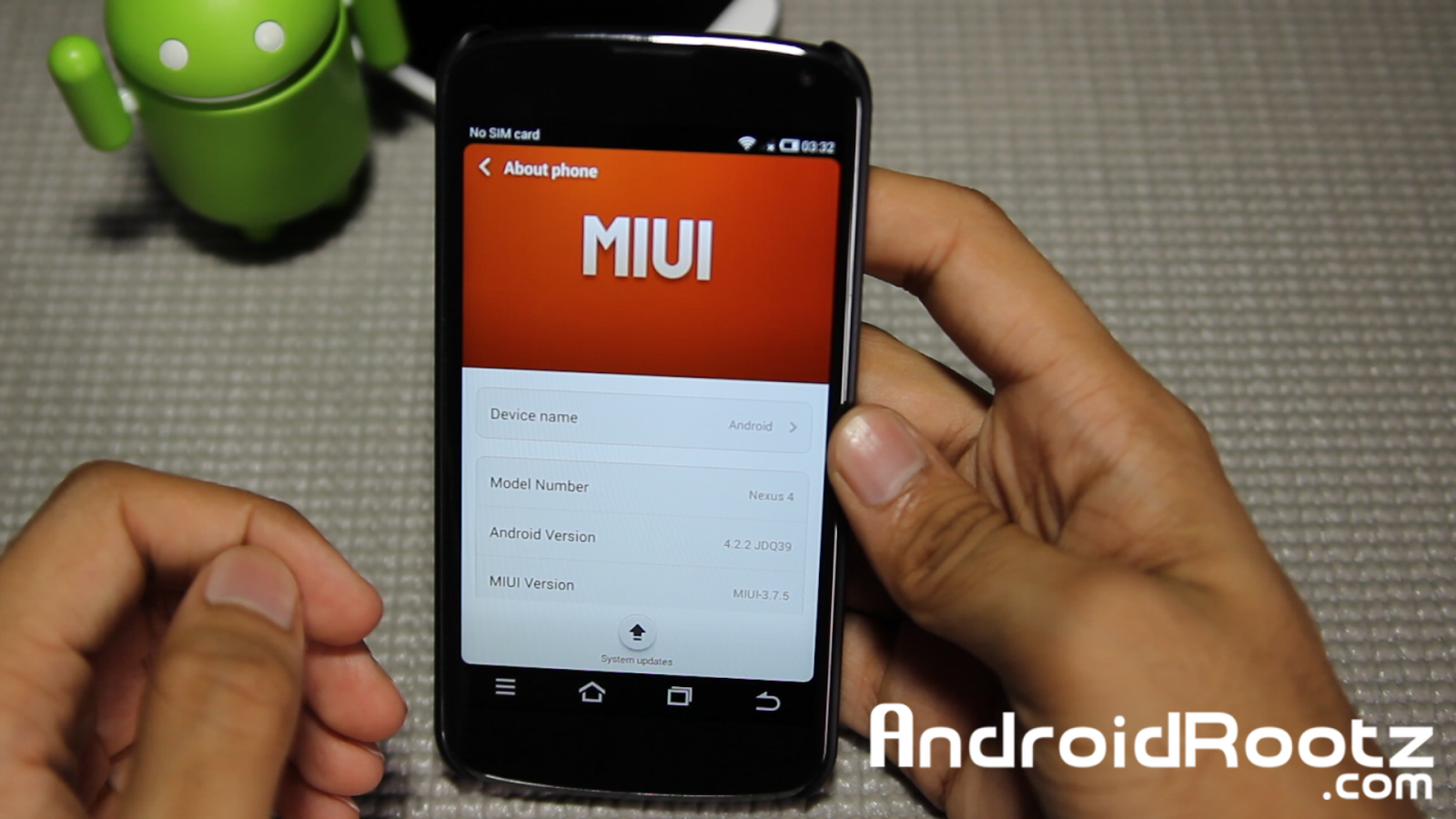
MIUI ROM Review for Nexus 4! Working LTE + Themes

Check Out The Video!

MIUI ROM for the Nexus 4 is one of my most favorite ROMS because of how the MIUI team has completely changed the look of the UI until you can't even tell if it's running on Android or not. MIUI ROM completely changes the look and functionality like no other ROM you have ever seen before!

When you first install the ROM you get a completely different lockscreen and when you double tap the middle of the lockscreen your music play options show up. After passing the lockscreen all the icons are completely themed and there is no app drawer, all your apps are on your homescreen. 


With this ROM you also get 100's of themes you can apply to your phone. Some of the these themes cost money but even the free themes are nice! All your toggles, settings, and many apps are themed and make your Android phone look completely designed! 


Download MIUI ROM using the link below: 

Download MIUI ROM for Nexus 4

Credits - XDA
-----------------------------------------------------------------------------------------------------------------------------
Need Help With Your Android Device? Follow Me / Add Me / Like Me 
Twitter 
Facebook 
Google Plus
-----------------------------------------------------------------------------------------------------------------------------
Check Out Our YouTube Channel For More Great Guides! 
YouTube and Subscribe
-----------------------------------------------------------------------------------------------------------------------------
Nexus 4 FAQ 
How to Root Nexus 4 
How to Install Custom ROMS on Nexus 4 
Please Check Out The Nexus 4 FAQ Section Before Commenting!
-----------------------------------------------------------------------------------------------------------------------------

Chameleon OS ROM Review for Nexus 4! - THEMES!

Check Out The Video!

This week we're taking a look at Chameleon OS ROM for the Nexus 4. This ROM is a solid ROM that is for anyone who is looking for a ROM that you can easily download full themes and apply them within seconds, all from your phone! 

Once installed you get a "Chameleon" green theme on your phone. From toggles to settings! To get more themes easily go into Settings > Themes > Get Themes and download more themes from the Chameleon OS forums. 

In the video I applied the MIUI theme and it turned out great! Everything was applied within seconds and it felt like I had a brand new phone! 

Chameleon OS also offers you to customize lockscreens, system, and lanucher settings! To finish things up, I love this ROM and I gotta say that green theme is my favorite look so far! 

Try out Chameleon OS ROM for Nexus 4 using the download links below!

Download Chameleon OS ROM for Nexus 4
Download Gapps


Credits - XDA
-----------------------------------------------------------------------------------------------------------------------------
Need Help With Your Android Device? Follow Me / Add Me / Like Me 
Twitter 
Facebook 
Google Plus
-----------------------------------------------------------------------------------------------------------------------------
Check Out Our YouTube Channel For More Great Guides! 
YouTube and Subscribe
-----------------------------------------------------------------------------------------------------------------------------
Nexus 4 FAQ 
How to Root Nexus 4 
How to Install Custom ROMS on Nexus 4 
Please Check Out The Nexus 4 FAQ Section Before Commenting!
-----------------------------------------------------------------------------------------------------------------------------

How to Flash / Install Custom Roms,Themes on Galaxy Nexus! [GSM/Verzion/Sprint]


Good source for custom ROMS below:
Galaxy Nexus GSM

This guide will show you how to flash (install) custom roms, themes, tweaks, and mod that are used through ClockworkMod Recovery. This guide will work for any type of Galaxy Nexus device including GSM,Verizon, and Sprint.

MUST HAVE ClockworkMod Recovery installed to flash / install zip files 


Install ClockworkMod Recovery Galaxy Nexus [GSM/Verizon/Sprint] [Mac]

How to Flash / Install Custom Rom: 
1. Transfer the zip file / files to your phone's internal memory.

2. Enter into bootloader mode (Power off your device, hold the volume up, volume down, and power button all at the same time)

3. You will now be on a green start screen. Press the volume up 2x and power button to select "Recovery".

4. ALWAYS do a factory reset until your told specifially told not to or you will brick your phone!!
Tap on "Factory Reset" > "Yes".

5. "Install zip from SD card" > "Choose zip from card" > find the file that you transfered to your phone earlier. Select it and press "Yes".

6. If you had to transfer 2 files then 9/10 times you probably had one zip file that was the custom rom and the other file was named "gapps" (Google apps)
Flash the custom rom first then the gapps second.

7. Go back and reboot your phone.

8. Wait at least 10 minutes and your phone should have a custom rom! Enjoy!

How to Flash / Install Themes, Tweaks, and Mods
1. Transfer the zip file / files to your phone's internal memory.

2. Enter into bootloader mode (Power off your device, hold the volume up, volume down, and power button all at the same time)

3. You will now be on a green start screen. Press the volume up 2x and power button to select "Recovery.

4. "Install zip from SD card" > "Choose zip from SD card" > find the file that you transfered earlier and select it. > "Yes" 

5. "Go Back" > "Reboot System Now" 

Now you will have your theme, tweak, or mod installed on your phone! Enjoy! 
----------------------------------------------------------------------------------------------------------------------------------
Need Help or add/follow me?
Google Plus
----------------------------------------------------------------------------------------------------------------------------------
FOR EMERGENCIES: (Bricked phone, not turning on, ect) 
Email Me : techfanatic9@gmail.com
----------------------------------------------------------------------------------------------------------------------------------
Don't forget check out my YouTube channel and subscribe for more great videos!
----------------------------------------------------------------------------------------------------------------------------------
Please check out the FAQ before asking questions!